Why iPhone Photos Are So Large (and how to fix it)
Your iPhone photos in HEIC are small on the phone, but when shared they convert and the size balloons. We explain why and how to get light photos without losing quality.
Quick summary: iPhone photos in HEIC format take up relatively little space on the phone thanks to highly efficient compression. But when sharing them outside Apple, the system converts them to JPG or PNG, and that's when the size balloons. Plus, modern iPhones shoot at 12 or 48 megapixels, producing enormous files for most everyday uses. The solution: convert and compress before sharing.
If you use an iPhone, you've probably noticed your photos don't take up too much space in the camera roll. But the moment you try to share them — email them, upload to a website, transfer to a Windows computer — suddenly they weigh much more than expected. Or worse: they won't open. What's going on?
HEIC: why they're small on the iPhone
Since iOS 11 (2017), iPhones save photos in HEIC (High Efficiency Image Container) by default. It's an extraordinarily efficient format: a HEIC photo takes up roughly half the space of the same image in JPG, at the same visual quality. That's why your photos fit so well on the iPhone: Apple chose a format that genuinely saves space.
What happens when you take them off the iPhone
The problem starts when sharing. AirDrop to another Apple device transfers HEIC without issues. But when you email, upload to a website, or transfer to a Windows PC, several things can happen depending on settings: the iPhone automatically converts to JPG (Settings > Photos > Transfer to Mac or PC > Automatic), which solves compatibility but the resulting JPG weighs more than the HEIC; the photo is sent as HEIC and the recipient can't open it; or Safari on Mac already delivers the photo as JPG when you drag it, even if the original is HEIC.
Megapixels: the other reason for the weight
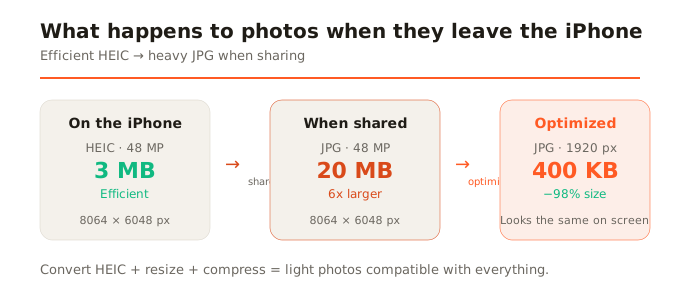
Recent iPhones (14 Pro onwards) shoot at 48 megapixels. That means 8064x6048 pixel images that even in HEIC weigh 5-8 MB. In JPG they can weigh 15-25 MB. For Instagram (which shows photos at 1080 pixels wide), for email, or for any screen use, those 48 megapixels are enormously excessive. You're carrying weight you don't use.
The practical solution: convert and compress
The ideal flow before sharing an iPhone photo is: if the file is HEIC, convert it to JPG (the universal format); if the resolution is much higher than you need (and it almost always is), resize to a reasonable size (1080-2000px wide is enough for the vast majority of uses); and compress at high quality (85-95%) to reduce weight with no visible loss.
A 48 MP iPhone photo that in HEIC weighs 6 MB and in uncompressed JPG would weigh 20 MB, after converting + resizing to 1920px + compressing at 90% quality, weighs under 400 KB. It looks exactly the same on any screen.
Why do it in the browser
You can do this conversion directly in your browser, without installing apps and without uploading your photos to any server. HEIC decoding uses a WebAssembly library that runs on your device, and compression uses the browser's engine. Your photos never leave your phone or computer. For someone who values the privacy of their iPhone photos (which tend to be personal, family, or document photos), this is especially relevant.
How to change the iPhone's default format
If you prefer your iPhone to save directly in JPG (without going through HEIC), you can: go to Settings > Camera > Formats and choose Most Compatible. Photos will take up more space on your phone, but you won't have compatibility issues when sharing. It's a tradeoff: iPhone storage space vs. convenience when sharing.
In summary
iPhone photos are small on the phone thanks to HEIC format, but when shared the size balloons due to JPG conversion and very high resolution (48 MP). The most practical solution is to convert and compress before sharing: HEIC to JPG, resize to the size you need, and compress at high quality. Result: light photos, compatible with everything, with no visible quality loss.