How to Reduce an Image's File Size to Upload It Faster (without it showing)
Phone photos weigh far more than necessary. By combining compression and resizing, you reduce their size with no visible loss, so they upload fast and don't clog emails or websites.
Quick summary: Photos from modern phones weigh far more than needed for most uses. Reducing their size—by combining compression and resizing—makes them upload faster, stop clogging emails, and avoid slowing down your website, all without visible loss of quality. We explain how to do it right.
"The file is too large." "It can't be attached." The website takes forever to load your photos. If that sounds familiar, the problem is the same: images that weigh far more than they need to. The good news is that reducing that weight is easy and, done right, you won't notice any loss of quality. Let's look at it.
Why today's photos weigh so much
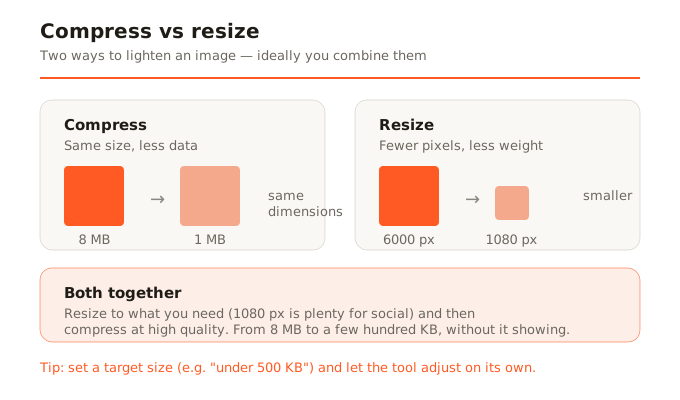
Current phones take photos of 12, 24, 48, or even more megapixels. That means huge images, several thousand pixels wide, that can easily weigh between 3 and 10 MB each. To print a poster, that resolution makes sense. But for what we actually do with photos—uploading them to networks, sending them by email or messaging, putting them on a website—it's far more than necessary. An image for Instagram doesn't need 6000 pixels wide when it'll be shown at 1080. You're carrying weight you don't use.
The two ways to reduce weight (and why use both)
There are two levers to lighten an image, and ideally you combine them. The first is to compress: reduce the amount of data in the image by discarding information the eye barely perceives. A well-tuned compression lowers the weight enormously without your seeing a difference. The second is to resize: reduce the dimensions in pixels. If a photo is 6000 px wide and you'll only show it at 1080, reducing it to 1080 px removes a huge amount of weight you weren't using for anything. Separately they help; together they're unbeatable.
Lossy and lossless compression, explained simply
You may have heard these terms. It's simple: lossy compression (JPG, WebP) discards detail you normally don't perceive, and achieves very low weights. For photographs it's ideal: at high quality, the loss is invisible. Lossless compression (PNG) keeps the image exact, but barely reduces weight in photos. That's why, for photographs, you almost always want lossy compression at high quality: the perfect balance between weight and quality.
The trick: compress to a target size
Here's the genuinely useful part. Instead of trying qualities blindly (80%? 70%? does it show?), the most convenient approach is to tell the tool the size you want—for example, under 500 KB—and let it adjust quality and dimensions on its own to get there. This solves the typical cases in one go: that form that only accepts images under 2 MB, that email that bounces due to heavy attachments, that website asking for light photos.
How to reduce an image's size, step by step
- Open the compression tool in your browser (with nothing to install and no sign-up).
- Drop your image. It loads locally; it isn't uploaded to any server.
- Choose your target: either a maximum size (for example, 500 KB) or a quality level. If the image is very large, resize it as well to a reasonable size for its use.
- Download the result. You'll have a much lighter image, ready to upload fast.
A couple of final tips
Don't overdo the compression. Lowering quality too much to gain a few KB isn't worth it: visible artifacts appear and the image looks bad. The goal is balance: the lowest possible weight while keeping a quality that looks good. And remember that resizing is usually more effective than crushing the compression. Before destroying quality, ask yourself whether you really need all those pixels. You almost never do.
In summary
Modern photos weigh far more than necessary for everyday use. By combining resizing (adjusting the pixels to what you really need) and compression at high quality, you can drastically reduce an image's weight without it showing, so it uploads fast and causes no problems. And if you set a target size, the tool does the work for you.