JPG, PNG, WebP, and HEIC: Which Image Format to Use and When
JPG for photos, PNG for graphics, WebP for lightweight web, and HEIC for the iPhone. We explain the differences and the mistake of saving photos as PNG.
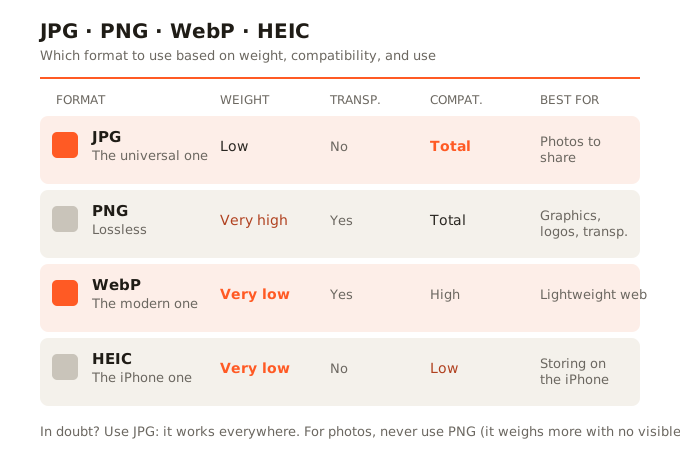
Quick summary: JPG for photos you'll share, PNG for graphics and transparency, WebP for lightweight web, and HEIC is the iPhone's efficient format that's worth converting before sharing. If you only remember that sentence, you already know the essentials. If you want to understand why—and avoid the mistake of saving photos as PNG—read on.
You're about to save an image and the program asks: JPG? PNG? WebP? And you freeze. It's one of those small decisions we make blindly, and yet it makes the difference between a 200 KB file and a 15 MB one, or between an image that opens everywhere and one that causes problems. Let's settle it once and for all, without jargon, so you always know which to pick.
JPG: the universal one for photographs
JPG (or JPEG) is the most widespread format in the world and, to this day, the most compatible. It's a lossy format: it discards information the eye barely perceives to achieve light files. For photographs—with their millions of colors and smooth gradients—it works wonderfully: it achieves a very low weight while keeping excellent visual quality. When to use it: photos for social networks, emails, websites, any image you're going to share. It's the safe default. Its only drawback: it doesn't support transparency.
PNG: lossless, but heavy
PNG is a lossless format: it keeps the image exact, pixel by pixel, discarding nothing. It also supports transparency. That makes it perfect for graphics, logos, screenshots, and any image with sharp edges or transparent areas.
Its big drawback—and a very common mistake: people save photographs as PNG thinking it's better quality. And technically it keeps everything… but at a brutal cost in weight. A normal photograph in PNG can weigh 10, 15, or more megabytes, versus a few hundred KB in JPG, without your seeing any difference. PNG isn't meant for photos. If your image is a photograph, you almost never want PNG.
WebP: the modern, lightweight one
WebP is a relatively recent format, developed for the web. Its appeal is that it combines the best of both worlds: it weighs less than JPG at the same visual quality, and it also supports transparency like PNG. It is, in many ways, the most efficient format for web use today. When to use it: images for your own website (faster loading), or when you want the lowest possible weight while keeping quality. Its drawback: although nearly all modern browsers support it today, some old program or specific platform might not open it.
HEIC: the iPhone's efficient one
HEIC is the format iPhones have used by default since 2017. It's extraordinarily efficient: a photo takes up half the space of JPG at equivalent quality. The problem is compatibility: outside the Apple ecosystem, much software doesn't know how to open it. When to use it: leave it as is while the photo lives on your iPhone (it saves space). But before sharing it with someone who doesn't use Apple, or uploading it to a website, convert it to JPG.
The practical recommendation, case by case
- A photo for Instagram, WhatsApp, or email? → JPG.
- A logo or a graphic with transparency? → PNG.
- Images for your own website and you want it to load fast? → WebP.
- A photo from the iPhone that won't open on the computer? → convert the HEIC to JPG.
- In doubt and you just want it to work everywhere? → JPG, no second thoughts.
In summary
There's no best format in the abstract: there's the right format for each use. JPG for photos you share, PNG for graphics and transparency, WebP for lightweight web, and HEIC for storing on the iPhone (converting it before sharing). The costliest mistake is using PNG for photographs: it fills your disk while giving you nothing in return.