How to Convert HEIC to JPG Without Losing Quality (free, no uploads)
HEIC is the iPhone format half the digital world can't open. Here's how to convert it to JPG in seconds, with nothing to install and without your photos ever leaving your device.
Quick summary: HEIC is the format your iPhone uses to save space, but much of the digital world doesn't recognize it. Converting it to JPG fixes that in seconds, and you can do it with nothing to install, no sign-up, and—most importantly—without your photos ever leaving your device.
It's happened to you: you send a photo from your iPhone, try to open it on a work computer or upload it to a website, and you get an error—or worse, nothing shows up at all. The photo looks perfect on your phone, but anywhere else it's like it speaks another language. That language is called HEIC, and in this guide you'll understand what it is, why it causes problems, and how to convert your photos to JPG without losing quality or privacy.
What the HEIC format is and why your iPhone uses it
HEIC stands for High Efficiency Image Container. It's the format iPhones have saved photos in by default since 2017, with the arrival of iOS 11. Its big advantage? Efficiency: a HEIC photo takes up roughly half the space of the same image in JPG, while keeping practically the same visual quality.
For Apple it makes complete sense. It means your iPhone fits twice as many photos in the same storage, and your camera roll doesn't fill up as fast. The problem isn't the format itself—technically it's excellent—but its compatibility outside Apple's ecosystem.
Why HEIC gives you so much trouble
Here's the crux of it. Windows (especially older versions), many web apps, editing programs, email clients, and quite a few platforms don't know how to open a HEIC file. When you try to use that photo outside your iPhone, you find that the recipient can't see it, the website won't accept it, or the program rejects it.
It's the source of a whole set of small everyday frustrations: sending a photo to a relative on Android, attaching an image to a web form, uploading a photo to a platform that only accepts JPG. In all those cases, the solution is to convert the HEIC to a universal format.
Why JPG is still the king of compatibility
JPG (also written JPEG) has been around since the early 1990s and, to this day, opens absolutely everywhere: any computer, any phone, any browser, any social network, and any editing program, no matter how old. It's not the most efficient format out there today—HEIC or WebP compress better—but it is, by far, the most universal. And when your goal is for a photo to be viewable and usable anywhere without surprises, universality beats efficiency. Put simply: HEIC is ideal for storing photos on your iPhone; JPG is ideal for sharing them with the world.
"Without losing quality": what that really means
Here we need to be honest, because there's a lot of misleading marketing. Both HEIC and JPG are lossy formats: both discard some information to reduce file size. When you convert from one to the other, the key is doing it at a high enough quality that the difference is invisible to the human eye.
A well-done conversion, with quality set to 90% or higher, produces a JPG that to your eyes is identical to the original. You won't notice anything at all in a photo you're going to email, post to Instagram, or print at normal size. The loss is theoretical, not perceptible. For 99% of real-world uses, converting HEIC to JPG at high quality costs you nothing you can see.
The hidden problem with most online converters
If you search for how to convert HEIC to JPG, you'll find dozens of pages that promise to do it for free. But almost all of them work the same way, and it's worth knowing: they upload your photo to their server, process it there, and send the result back. This raises three problems that aren't always obvious:
- Privacy: your photos—which can be personal, of family, or even documents—end up on a server you don't control. You don't know what that company does with them, how long it stores them, or who has access.
- Speed: uploading the image, waiting for the server to process it, and downloading it again takes time, especially with several photos or a slow connection.
- Limits: many impose a maximum number of photos per day, a size cap, or simply ask you to sign up and give your email.
The alternative: convert right in your browser
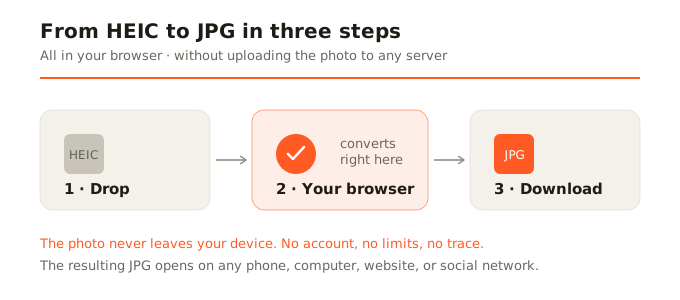
There's a more modern and respectful way to do it, and it's the one we use at SocialShrink: convert photos directly in your browser, without them ever leaving your device. Thanks to current browser technologies—specifically WebAssembly and the Canvas API—the whole process happens on your own computer or phone. Your HEIC photo loads into the browser's memory, gets transformed right there, and you download the resulting JPG. At no point is anything uploaded to any server. When you close the tab, not a trace is left.
How to convert HEIC to JPG step by step
- Open the HEIC converter. You don't have to install any program or create any account.
- Drop your HEIC photo (or tap to select it, if you're on mobile). The image loads into your browser; it isn't uploaded anywhere.
- Choose JPG as the output format. If the photo is to share or upload somewhere, JPG is the recommended option for its universal compatibility.
- Adjust the quality if you need to. By default it's already at a high value that keeps every visible detail.
- Download the JPG. Ready to use wherever you want, with no compatibility surprises.
What if I need PNG or WebP instead of JPG?
It depends on what you'll use the image for:
- JPG is the best option for photos you're going to share: light, universal, and more than enough for any social network or email.
- WebP is a more modern format that weighs even less than JPG at the same quality. It's excellent for websites and for reducing weight, though some very old program might not open it.
- PNG keeps the image with no loss at all, but in return the files are much larger (a single photo can weigh 10 MB or more). It's only worth it for graphics, screenshots, logos, or images with transparency—never for normal photos.
For the vast majority of situations—sending a photo, uploading it to a network, attaching it to a message—JPG is the right answer without overthinking it.
In summary
HEIC is a great format for saving space on your iPhone, but JPG is what you need for your photos to work everywhere. Converting from one to the other doesn't have to cost you quality, time, or your privacy. Doing it right in your browser, with nothing uploaded to any server, is the fastest, safest, and most private way to get your photos ready for the world.