How to Compress Photos for Email Without Losing Quality
The file is too large to attach. We explain how to compress photos for email quickly, keeping visible quality intact, with nothing to install.
Quick summary: Email services have attachment limits (usually 25 MB on Gmail, Outlook, and similar). A single phone photo can weigh 5-10 MB. The solution is to compress the image before attaching: reduce its weight while keeping quality that looks identical to the human eye. It takes seconds and requires nothing to install.
It's one of the most common digital frustrations: you want to email a photo and the service tells you the file is too large. Or the email goes out but takes forever. Or the recipient gets it but can't easily download it because it clogs their inbox. The problem isn't the email: it's that modern phone photos weigh far more than necessary to look good on a screen.
Why phone photos weigh so much
Today's smartphones take 12, 48, or even 108-megapixel photos. That produces files between 3 and 15 MB per photo. To print a poster, that resolution makes sense. To email it for someone to view on screen, it's an absurd amount of data. An image 1920 pixels wide looks perfect on any screen and weighs a fraction of the original.
What compressing without losing quality means
Compressing an image means reducing the data in the file. Lossy compression (like JPG or WebP) discards information the human eye doesn't perceive. At high quality (85-95%), the difference between original and compressed is invisible on screen. It's not marketing: it's how human visual perception works. The discarded details are imperceptible unless you zoom to 300% and hunt for pixel-level differences.
The two levers: compression and resizing
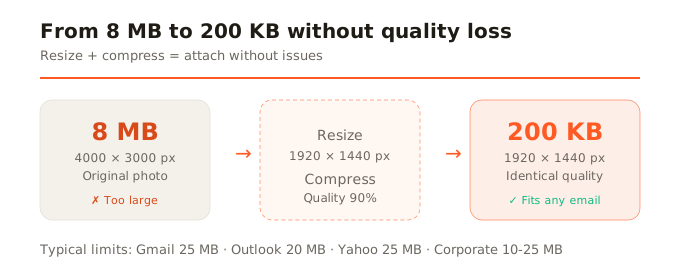
Compression adjusts how much data is stored per pixel. Resizing reduces the total number of pixels. Together they're far more effective than either alone. A 4000x3000 photo weighing 8 MB, resized to 1920x1440 and compressed at high quality, can weigh 200-400 KB. Same image, looks the same on screen, but weighs 20 times less.
Attachment limits on major services
- Gmail: 25 MB per email (larger files auto-shared via Google Drive).
- Outlook/Hotmail: 20 MB per email.
- Yahoo Mail: 25 MB per email.
- iCloud Mail: 20 MB per email (large files via Mail Drop).
- Corporate email: varies, but usually 10-25 MB.
If you send 3-4 uncompressed photos, you easily exceed the limit. Compressed, you can send dozens in a single email with no issues.
How to do it step by step
- Open the compression tool in your browser. No installation or account needed.
- Upload the photo (or several). It loads in your browser, nothing is uploaded to any server.
- The tool compresses automatically. If you want a specific weight (e.g., under 500 KB), use target size mode.
- Download the compressed photo and attach it to your email. Done.
A practical tip
If you email photos regularly, get used to resizing before compressing. The biggest weight reduction comes from lowering resolution to the actual size you need (1920px wide is more than enough for any screen). Then compression does the rest. And if the destination is just viewing the photo on a phone, even 1080px wide is plenty.
In summary
Compressing photos for email is fast, requires nothing to install, and the quality loss is imperceptible. Combine resizing (fewer pixels) with compression (less data per pixel) and your phone photos will go from 8 MB to 200 KB without anyone noticing the difference. Attaching photos will stop being a problem.